Manage Spaces
Last updated: October 14, 2025
Overview
Admins can update spaces at any time. Changes made to spaces will take immediate effect. In this article, we’ll go over everything you need to know to manage spaces.
Locate a Space
Spaces are added to locations. To get started, you will first need to find the location you want to add a space to.
You can view all spaces associated with the location in the Spaces tab.
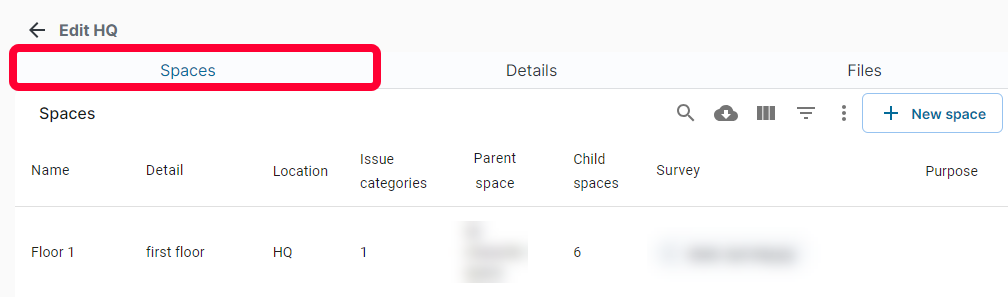
You can search and filter spaces. For more information on the search and filter functions, see the article Searching and Filtering.
Click to open the desired space.
Edit a Space
Once you’ve found the desired space, click to view its profile. The Edit space page will open.
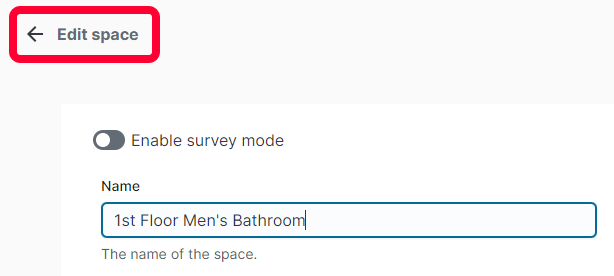
Fill out the relevant fields. For a breakdown of the field options, see the article Add a Space.
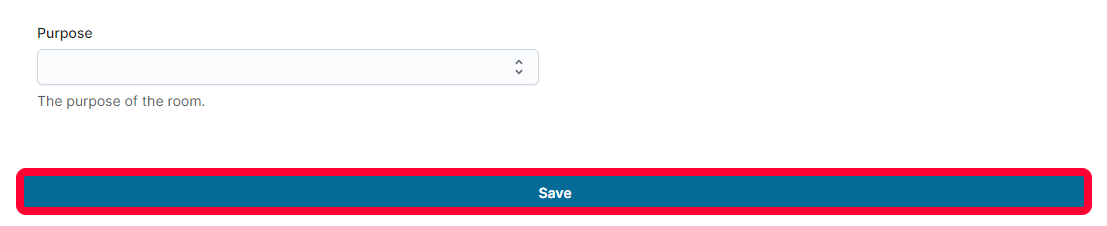
Click Save to keep your changes.
Archive a Space
Warning: When you archive a space, it will no longer appear as an option on tickets. Use caution before archiving.
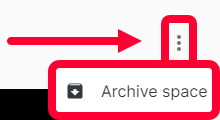
To archive a space, open it’s profile. Click the three dots in the top right and select Archive space.
Unarchive a Space
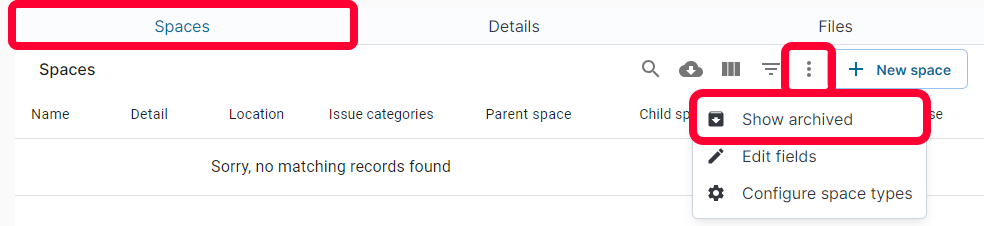
To unarchive a space, open the appropriate location and click the Spaces tab. Click the three dots in the top right and select Show archived.
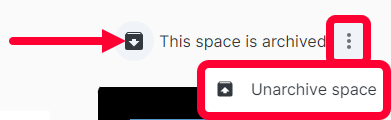
Open the desired space. Click the three dots in the top right and choose Unarchive space.