Export Insights
Last updated: October 14, 2025
Overview
The insight feature provides two different modes with a collection of graphs and tables of ticket data. You can export a PDF of insight graphs and tables or export a CSV file of specific data.
In this article, we’ll cover both forms of exports.
Export as a PDF
Note: Any filters applied to the data will apply to the export. Only the graphs and data visible on the page will be displayed in the PDF download.
In the top right of the Insight page, click the down arrow.

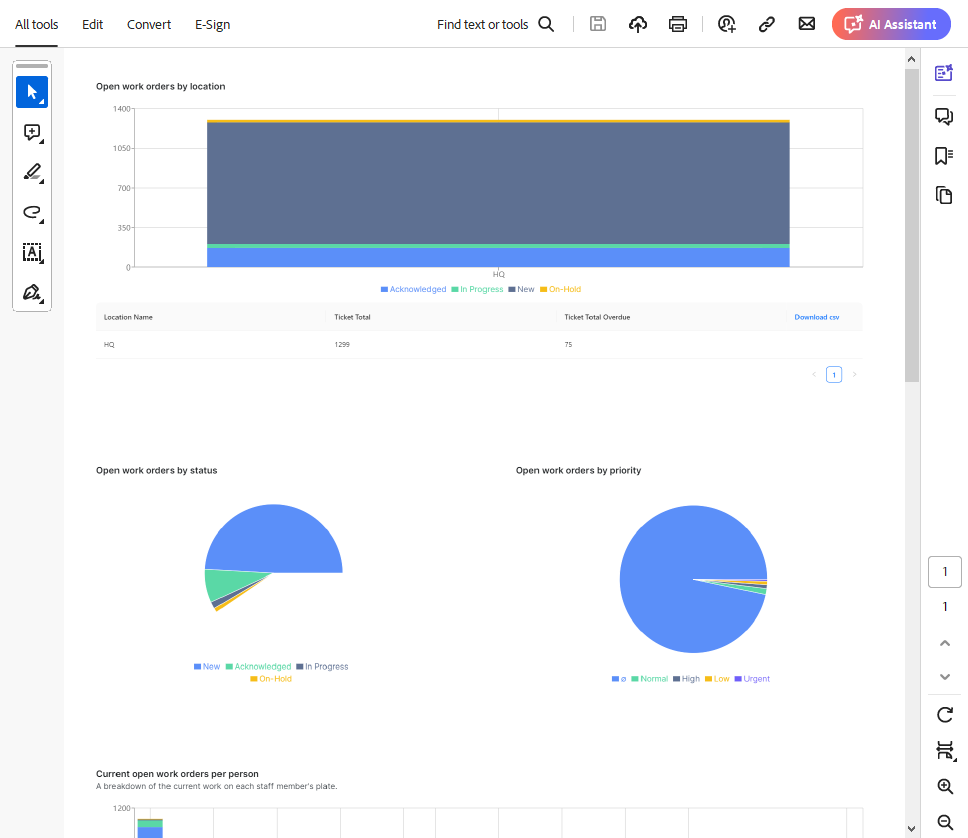
A PDF version of the page will download to your device.
Export CSV Data
Note: Any filters applied to the data will apply to the export. Only the data visible on the page will be displayed in the CSV file.
There are two ways to export data as a CSV file from the Insight page.
Some tables have a Download csv button in the top right corner. A CSV file of the data on display will download to your device.

Otherwise, you can click on a graph to open a detailed table of the data in a side window.
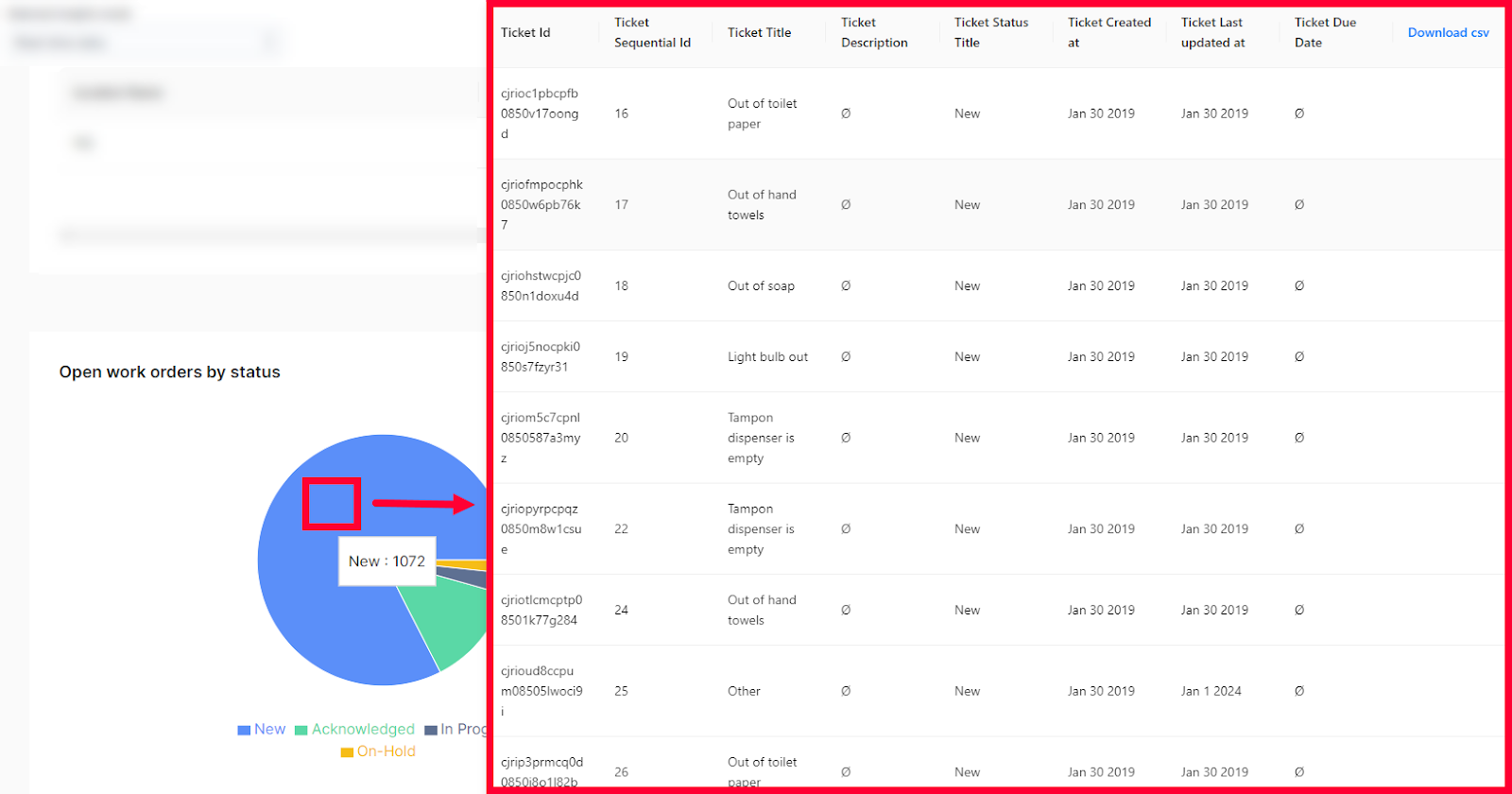
In the new window, click Download csv in the top right. A CSV file of the data on display will download to your device.
