Reply to Tickets
Last updated: October 14, 2025
Overview
Note: To view and respond to ticket comments, you must have entered an email address when submitting a ticket. If you did not provide an email address when filling out a ticket, you will not be able to receive information about it later or add additional comments.
Comments are messages made public to both the organization and you as the ticket submitter. In this article, we’ll go over how to view comments and reply or add your own to a ticket you submitted.
View a Ticket
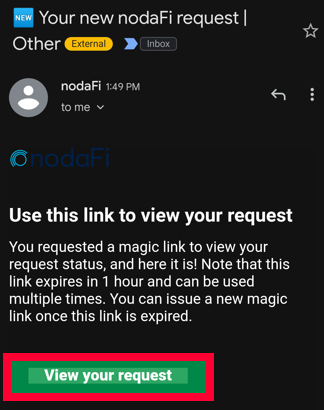
If you have an email with a link to your ticket, simply click the link. If the link is expired, you will be sent a code to use for login.
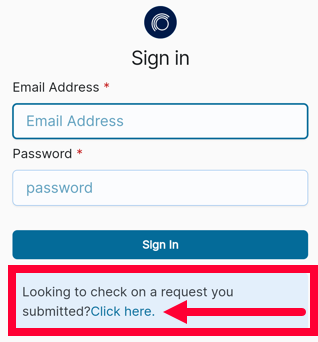
If you do not have an email with a link to your ticket, you can use the company login portal. Many times, the web portal is companyname.nodafi.com. On the Sign in page, scroll down to the section Looking to check on a request you submitted? Click the Click here link.
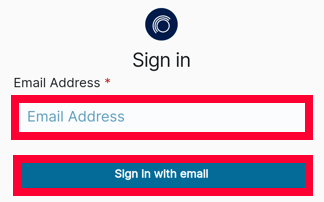
On the new page, enter the email address you used on the ticket as your contact email. Click Sign in with email.
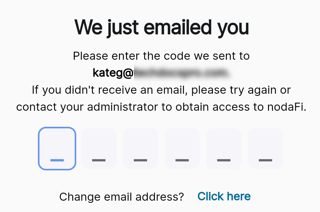
An email will be sent with an access code. Paste the code and nodaFi will open.
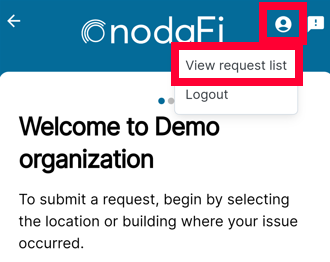
Click the person icon in the top right. Select View request list.
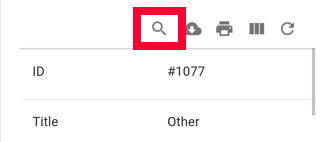
All submitted tickets tied to that email address will be displayed. You can use the magnifying glass icon to open a search bar and search by ticket ID, title, and description.
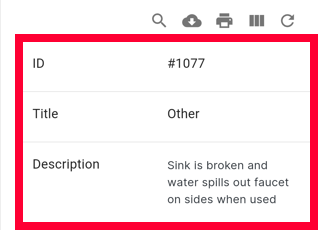
Click on the desired ticket.
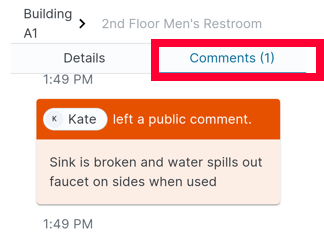
To see any public comments added to the ticket, click the Comments section.
Add a Comment
Note: Any comment you add will be public information for anyone with access to that ticket information.
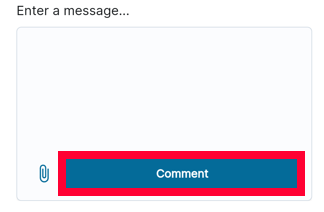
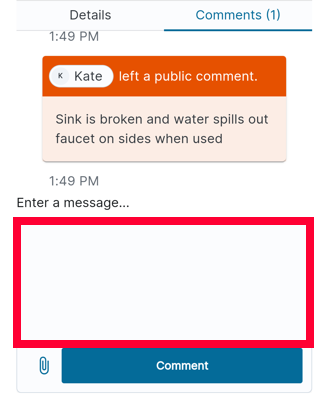
Use the Enter a message box to type your comment.
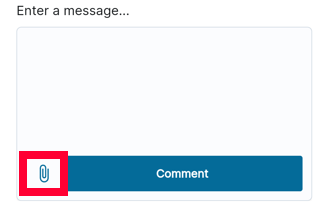
You can attach a file by clicking the paper clip icon in the bottom left and select a file from your device. You can upload up to 5 files at one time. Each file must be less than 10 MB.
When you’re ready, click Comment to submit your comment. The owners of the ticket will be notified of the new comment.