Manage a Ticket
Last updated: October 14, 2025
Overview
Admins can update tickets at any time, whether by updating ticket information or adding comments and files. In this article, we’ll go over the basics of how to manage your tickets.
- Update Ticket
- Comment on Ticket
- Manage Ticket Files
- Subscribe to a Ticket
- Download a PDF of the Ticket
Update Ticket
First, locate and open the desired ticket. The ticket will open in a window to the right.
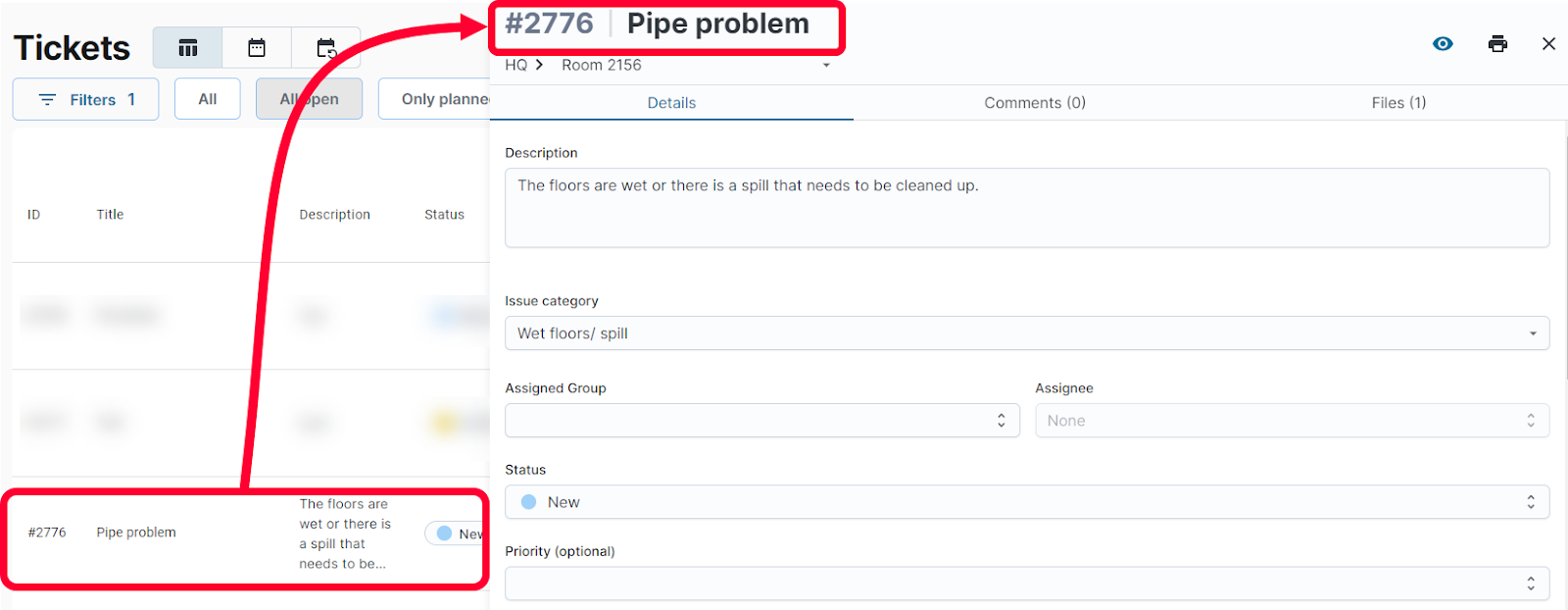
You can update any field in the ticket, for more information on the different fields, see the article Create a Ticket. Your changes will be saved automatically.
Comment on Ticket
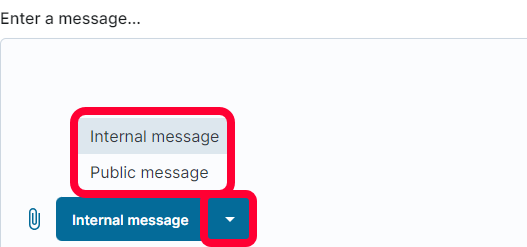
Comments are a way to have conversations about a ticket or leave important notes of information. There are two types of comments Internal messages that can only be seen by nodaFi users and Public messages that can be seen by end-users and anyone with permissions to view the ticket.
First, locate and open the desired ticket. The ticket will open in a window to the right.
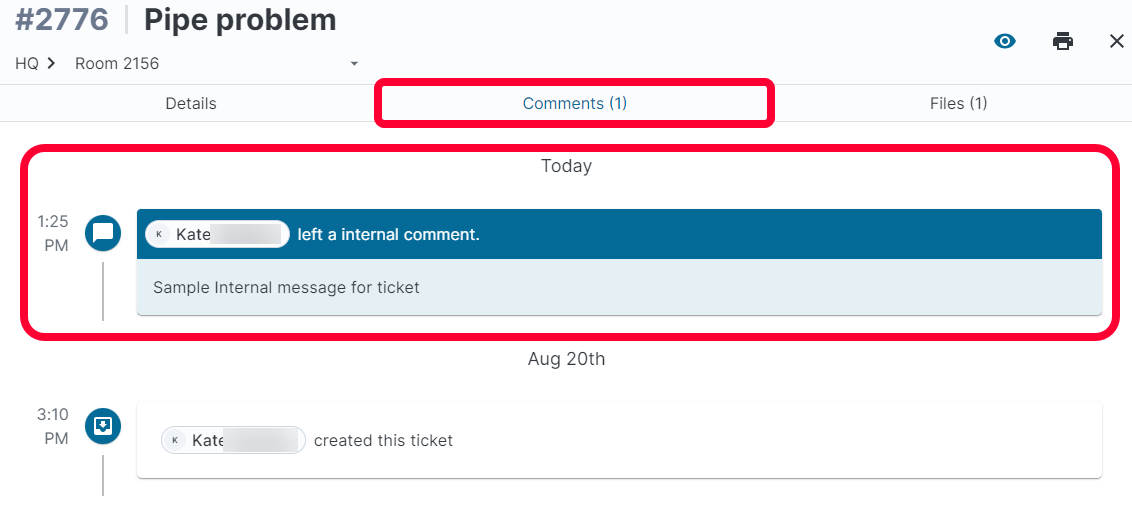
Click the Comments tab. Any existing comments will be displayed. The most recent comment will appear at the top of the page.
Use the button dropdown icon to select if the message is Internal or Public.
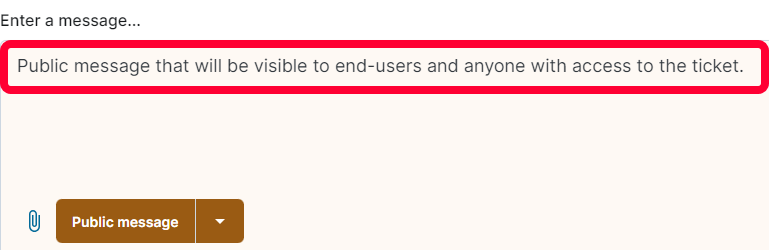
Type your message in the Enter a Message field.
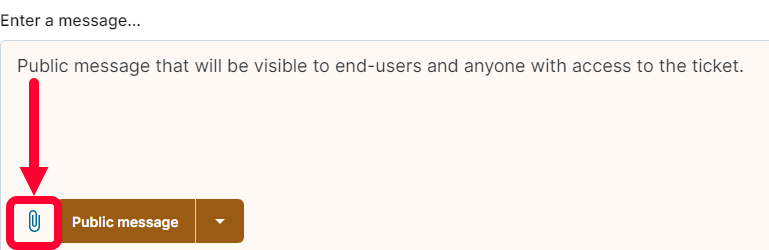
Use the paper clip icon if there is a file you want to attach from your device.
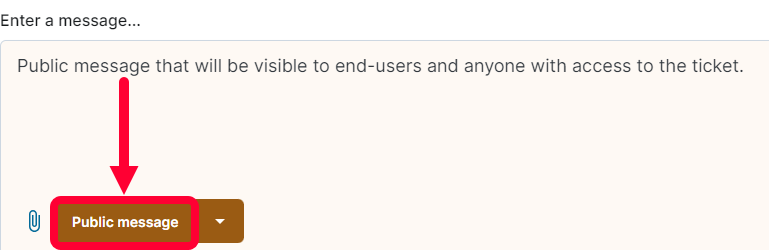
When you’re done click the Public message or Internal message button.
Manage Ticket Files
Tickets can contain files uploaded by end-users and other system users. Admins can view and add files to tickets as necessary.
First, locate and open the desired ticket. The ticket will open in a window to the right.
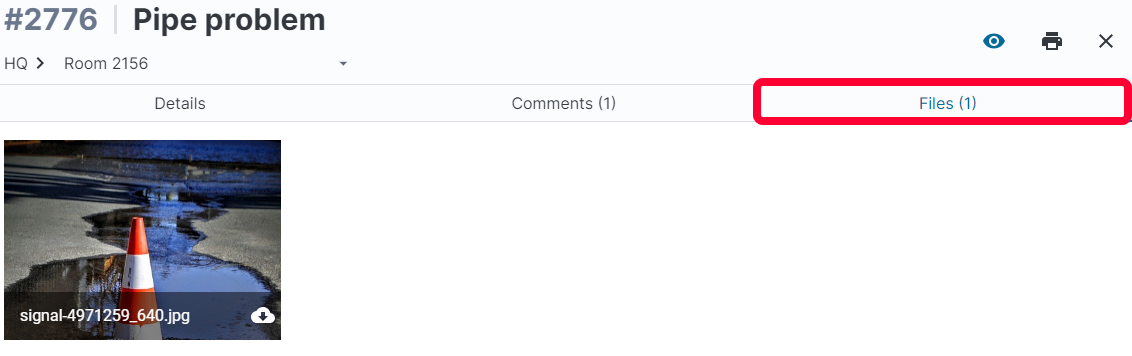
Click the Files tab. All existing files will be displayed.
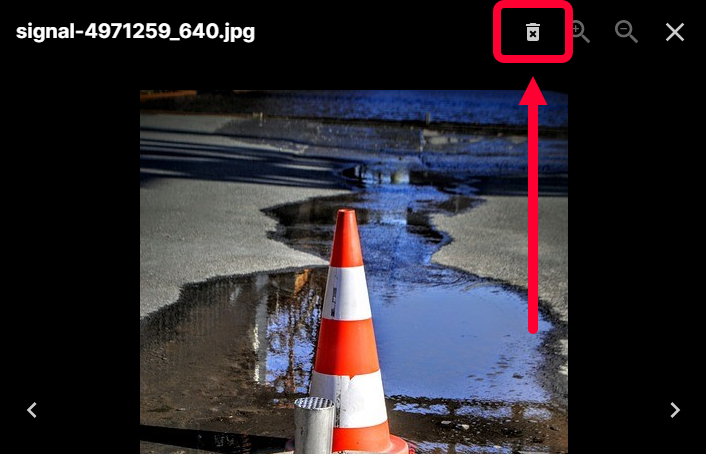
To remove a file, click to open it. In the top right click the trashcan icon to remove the file.
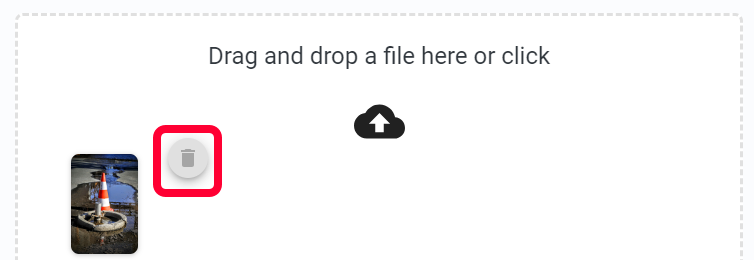
You can attach files to tickets by dragging and dropping them into the bottom field. You can also click the cloud icon and then select the desired file from your device.
A preview of the file will show in the field. To remove the file, hover over it and click the trashcan icon.
Subscribe to a Ticket
To receive notifications about updates to a ticket, such as changes in status or new comments, you can subscribe to a ticket.
First, locate and open the desired ticket. The ticket will open in a window to the right.
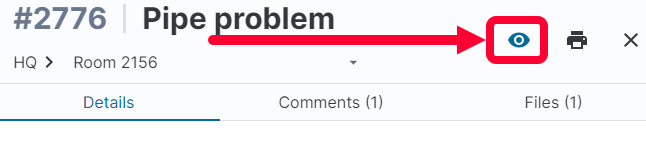
In the top right of the ticket window, click the eye icon. The eye icon means you are subscribed for updates.
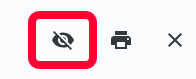
To unsubscribe from updates, click the icon again. A crossed-out eye icon indicates you are not subscribed.
Download a PDF of the Ticket
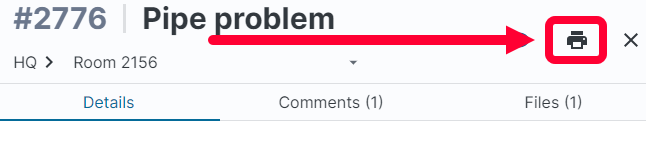
To download a PDF copy of a ticket, locate and open the desired ticket. The ticket will open in a window to the right.
In the top right, click the printer icon. A PDF version of the ticket will download to your device.