Searching and Filtering
Last updated: October 14, 2025
Overview
The more you use nodaFi, the more data it will contain. There are search and filter options for each feature to make it easier to find the needed information.
In this article, we’ll go over how to use the basic search and filter options.
Note: Some features have unique filter options, such as tickets.
Search
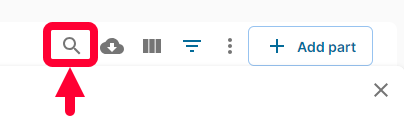
In the top right of a feature page, click the magnifying glass icon to open the search bar.
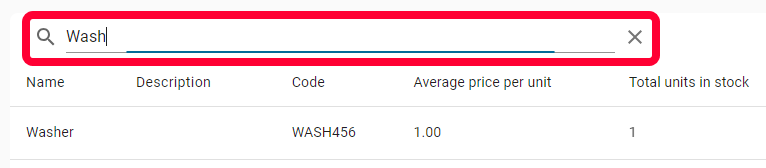
The search bar will open. Start typing in the field, matching results will show below.
Filters
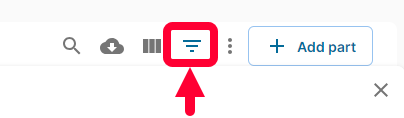
In the top right of a feature page, click the upside-down triangle icon to open the filter options.
Depending on the feature page, you will see different filter options. Filter options are based on the fields for the feature - if you created custom fields, you will see them as a filterable option too.
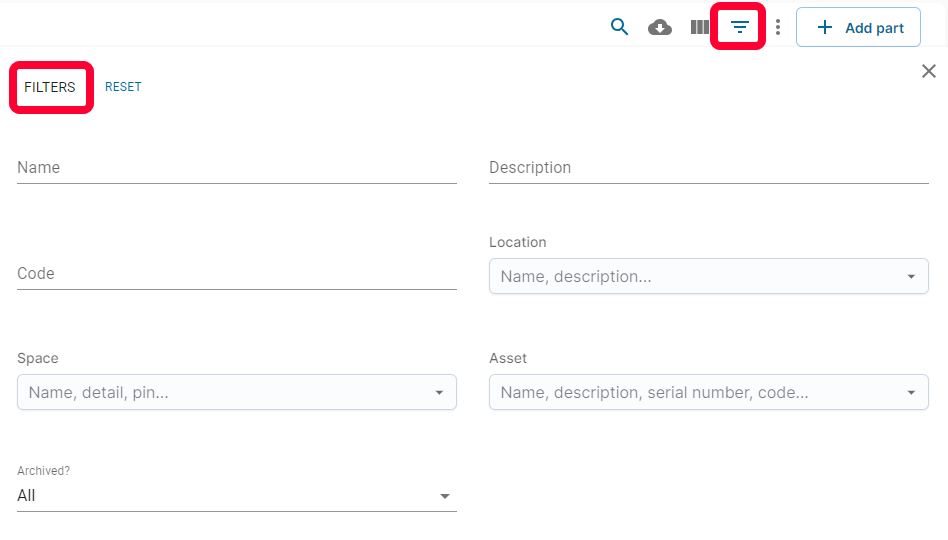
Some of the filters allow you to enter custom criteria. For example, start typing any part Name to begin to narrow the results.

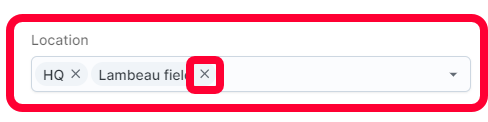
Other fields rely on a dropdown. You can select multiple options from a dropdown. You can remove options by clicking the X to the right.
Note: The more information you filter by, the narrower your results. For example, if you select two Locations, you will only see parts that exist in both locations.
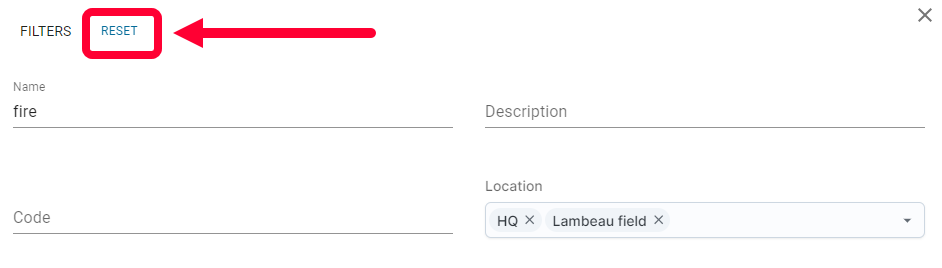
To remove all of the filters, click Reset in the filter options.
Close the filter options when you’re done. Matching results will appear on the page table.
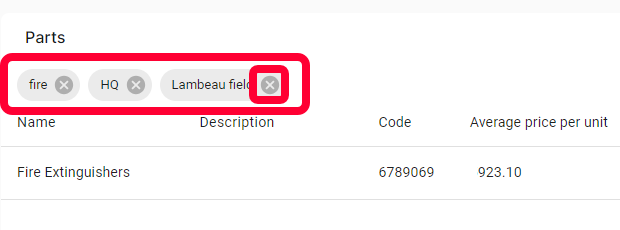
You can see the filter criteria at the top of the page. Click the X to remove a filter criteria.