Understanding the Home Page
Last updated: October 14, 2025
Overview
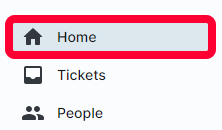
The Home page for nodaFi provides a quick overview of your ticket and check entry data. The Home page is the first thing you will see when logging into the web application. You can reach the Home page anytime by clicking Home in the left menu.
In this article we’ll go over the data you can see for both tickets and entries.
Tickets
The ticket data type will show you some basic statistics on tickets. You can filter what kind of tickets show up in the stats.
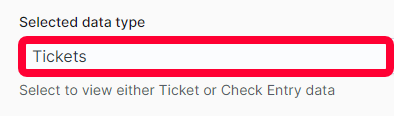
To get started, click Selected data type at the top of the page and select Tickets.
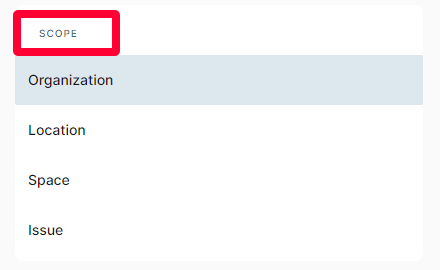
Filter what ticket statistics are shown using the Scope section. All information displayed to the right is based on the Scope choices.
For example, to see the ticket statistics specifically for tickets in your HQ location, click Location, and then HQ in the submenu.
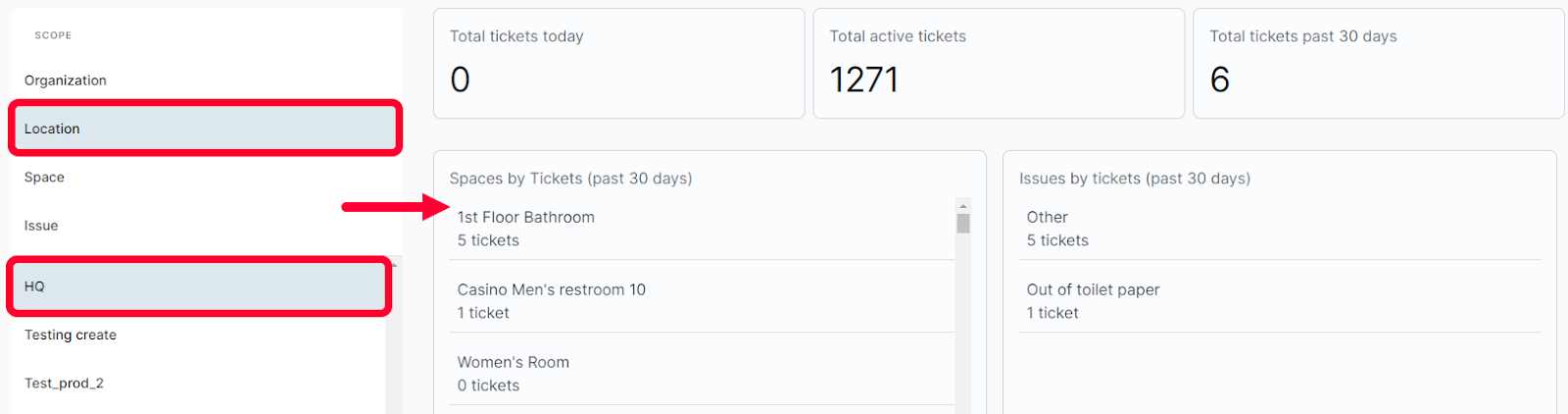
You can click any of the statistics or sections to see more detailed information. For example, to see the 6 tickets created in the past 30 days, click the section.
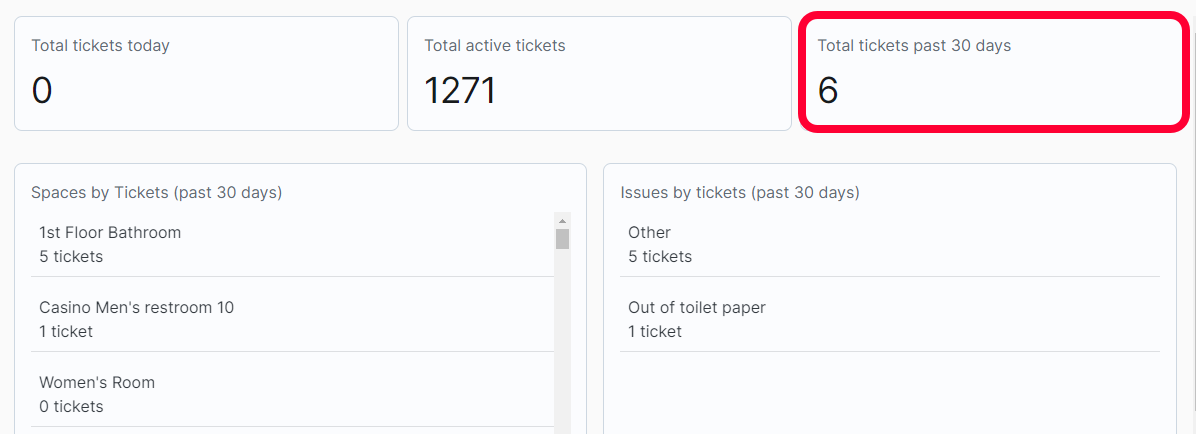
The Tickets page will open with the 6 tickets in the table. The table is automatically filtered based on the section you clicked.
Check Entries
The check entries data type will show you some basic statistics on when time logs were submitted. You can filter what entries show up in the stats. This can be helpful for tracking when people are checking in and out of work.
To get started, click Selected data type at the top of the page and select Check entries.

Filter the statistics by the date the entries were submitted. Click the calendar icon to open the date options. You can select a preset time frame to the right or enter a custom time period.
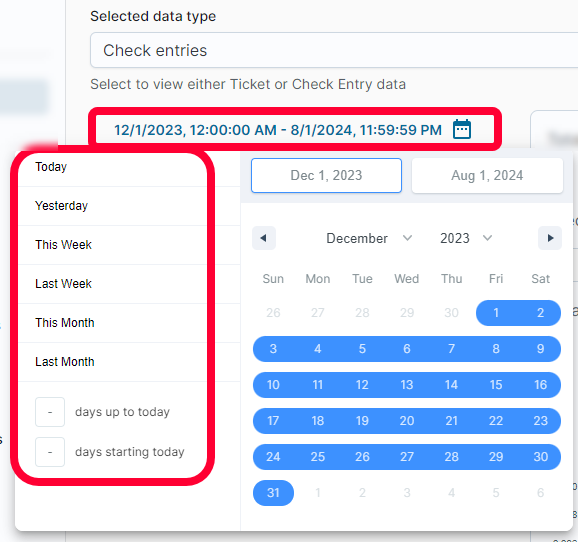
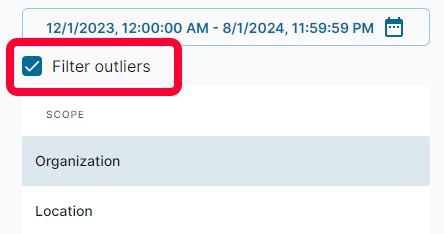
If you only want to see work orders, and not check entries, check the box for Filter outliers.
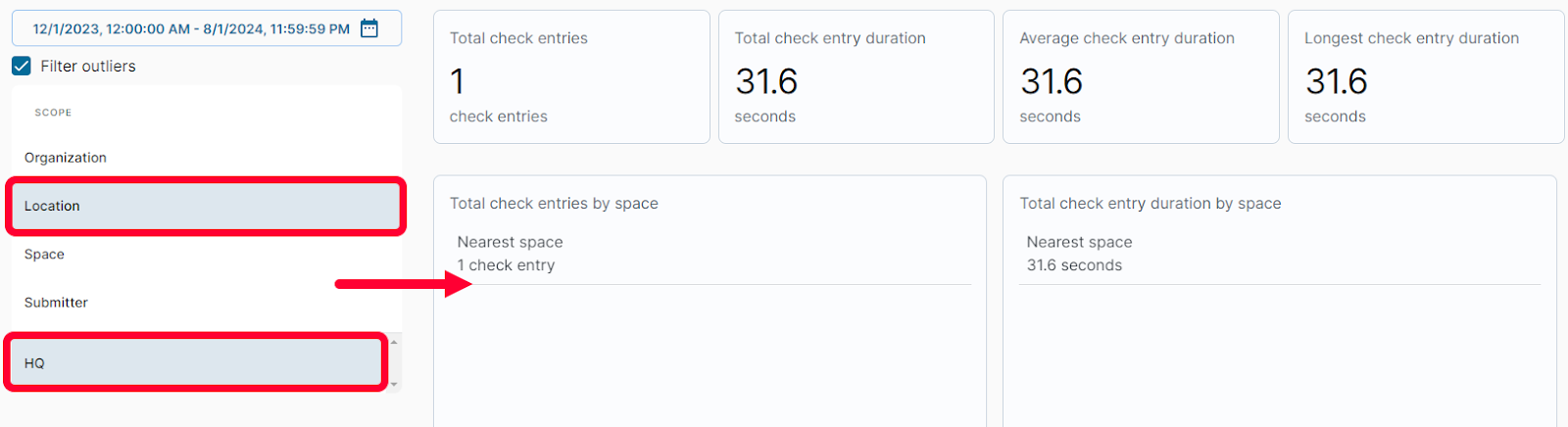
Next, use the Scope section to filter the entries included in the statistics. All information displayed to the right is based on the Scope choices.
For example, to see the entry statistics specifically for entries made for your HQ location, click Location, and then HQ in the submenu.
Learn More
Learn more about tickets and check entries in the articles below: