Manage Surveys
Last updated: October 14, 2025
Overview
Admins can update surveys at any time. Changes made to surveys will take effect going forward. In this article, we’ll go over everything you need to know to manage surveys.
Locate a Survey
Click Surveys in the left menu.
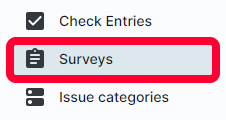
The Surveys page will open. On the left, there will be a list of existing templates. Scroll to find the desired survey, and click to open it.
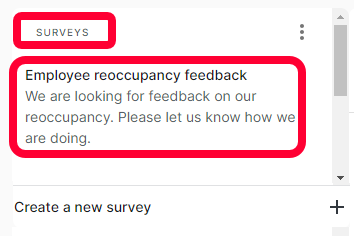
Edit a Survey
Once you’ve located the desired survey, click to view the survey entries. Click Edit survey in the top right.

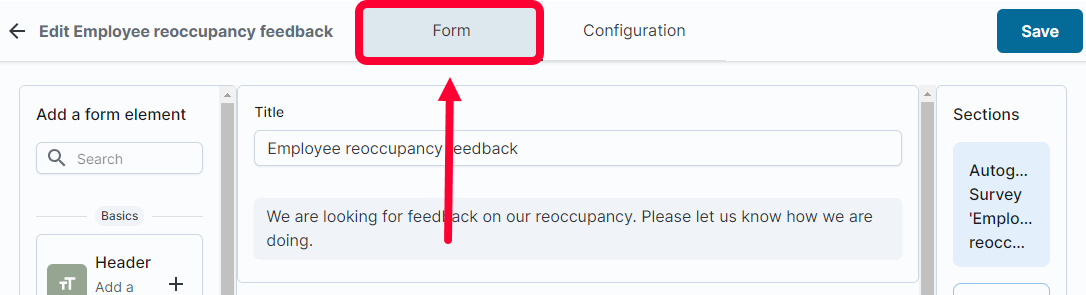
The Edit page will open. You can update the survey title, sections, and fields in the Form tab. For more information about the form sections and fields, see the article Create a Survey.
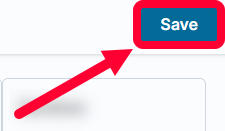
Click Save to keep your changes.
Archive a Survey
Warning: Archiving a survey means you will not be able to attach it to QR codes and any QR codes scanned associated with this survey will produce an error. Use caution when archiving a survey.
To archive a survey, click the Configurations tab. Toggle the Active switch to the left.
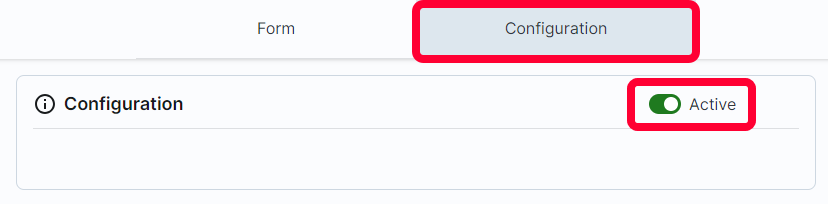
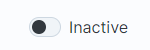
The switch will change to Inactive.
Click Save to keep your changes.
Unarchive a Survey
To unarchive a survey, click Surveys in the left menu.
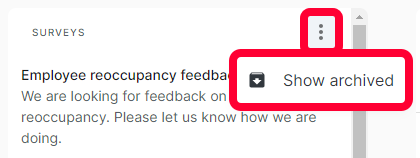
The Surveys page will open. On the left, there will be a list of existing templates, click the three dots in the top right and select Show archived.
Search for the desired survey, and click the survey name.
Click Edit survey in the top right.
Click the Configurations tab. Toggle the Inactive switch to the right.
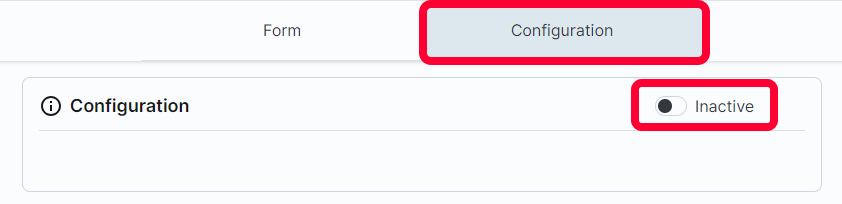
The switch will change to Active.

Click Save to keep your changes.