Survey Fields
Last updated: October 14, 2025
Overview
When you create a survey you can can add different fields to the survey. There are 6 basic field options you can choose from.
In this article, we’ll provide a quick overview of the different field options and when they can be used for surveys.
Field Options
The fields added to your survey form are to collect information from users. All fields will need the following information filled out:
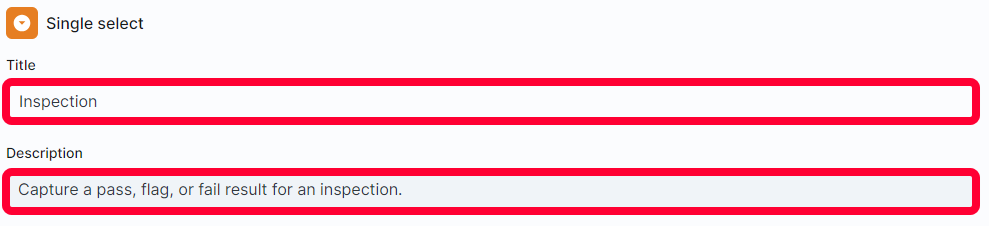
- Title - This is the label the field will have in the survey. Generally, this should be the question that the user is expected to answer.
- Description - This is a place to add further explanation for the field.
See the example below for a Single select field with a Title and Description.
Below is a breakdown of all the field options and when it should be used:
- Header - The header field allows you to add a header to a form to help describe or separate information.
- Short text - This field is best when prompting users for a one-line answer.
- Long text - This field is best when prompting users for a several-sentence freeform response.
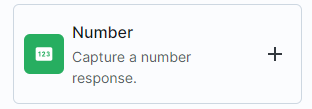
- Number - This field is when you need a numerical value returned, only number values will be accepted as responses.
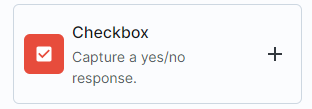
- Checkbox - This field is when you need a step or value marked true or false.
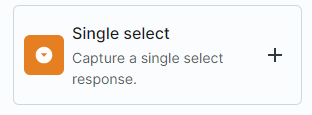
- Single select - This field is when you want to present a user with multiple answer options and have them select one. There is some additional setup needed for this type.
Single Select Fields
The Single select fields have additional options besides their Title and Description.
The purpose of the Single select field is to provide the user with a list of options to select a response from. To add new options, click Add new option at the bottom of the field.
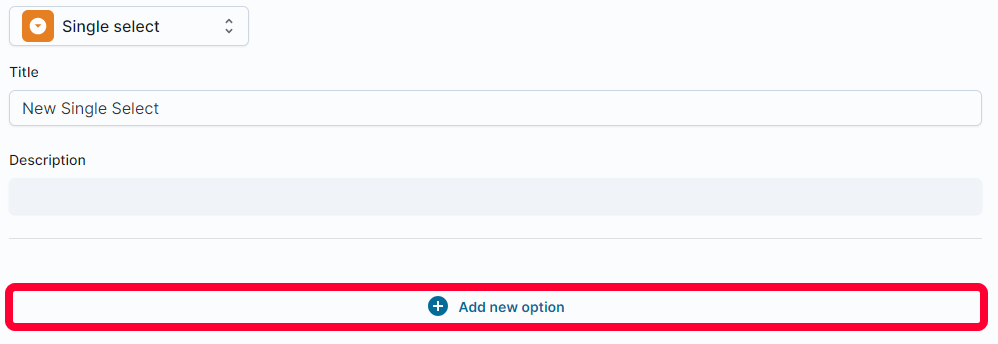
Enter the option name in the provided field. You can associate a color with the option by clicking the color square to the left.
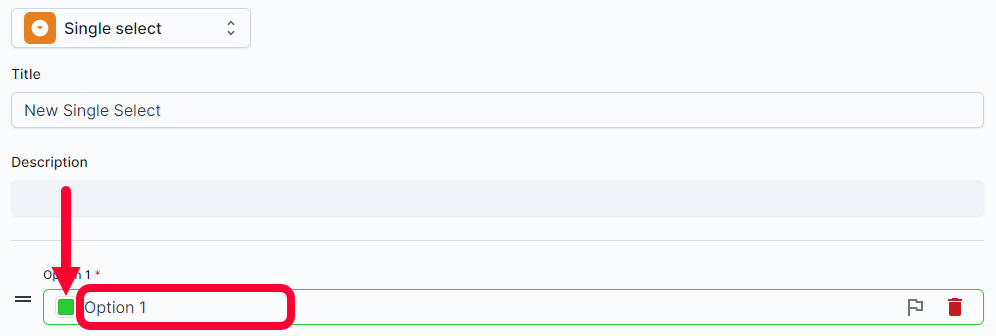
You can rearrange options by clicking the = symbol to the left and dragging and dropping it.

If you want to highlight when a user selects a certain answer, click the flag icon to the right. This will flag any entry where this option is selected.

You can remove options by clicking the trashcan icon to the right.
