Send and View Ticket Comments
Last updated: October 14, 2025
Overview
Users can view and add comments to tickets in the nodaFi mobile app. Tickets can either be public or internal.
Public comments are visible to anyone who has a link to the ticket. This includes people outside your organization such as vendors, customers, and end-users who may have submitted the ticket. Always use caution when publishing a comment publicly.
Internal comments are only visible to those given login credentials to nodaFi by your organization. Members of the public who have submitted tickets will not see internal comments, but caution should still be used when commenting on a ticket.
In this article, we’ll go over how to view and add comments to a ticket in the nodaFi mobile app.
Locate and View Ticket Comments
First, open the ticket you want to add a comment to or view the existing comments on. See the article Find and View a Ticket for help locating tickets.
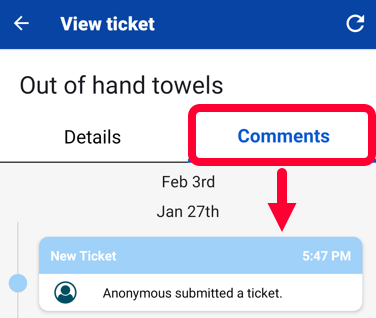
Click the Comments tab at the top of the ticket.
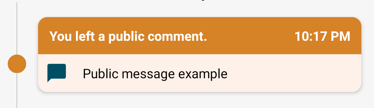
Public comments will appear with an orange color and be appropriately labeled.
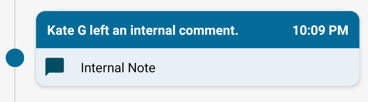
Internal comments will appear with a dark blue color and be appropriately labeled.
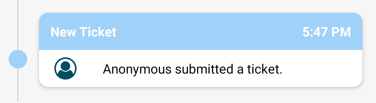
Changes to the ticket, such as status changes and more, will appear in light blue. These actions logs will be visible publicly.
Add a Private Comment
Warning: Use caution when adding private comments, you cannot edit or remove comments once sent.
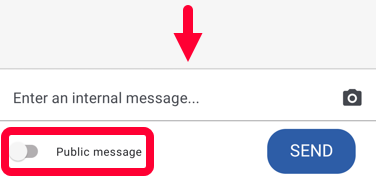
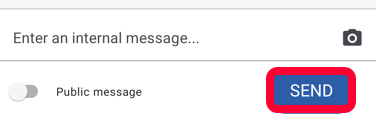
Toggle the Public message switch to the left.
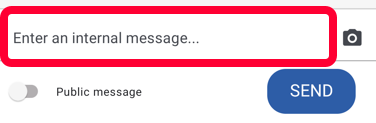
Type your comment in the Enter an internal message field.
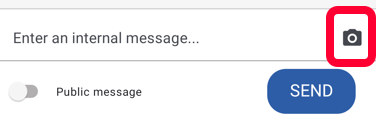
If you would like to attach an image, click the camera icon to the right. You will be prompted to take a new photo or select an existing one from your device.
When you are done, click Send.
Add a Public Comment
Warning: Use caution when adding public comments, you cannot edit or remove comments once sent and they are visible to anyone with the ticket link.
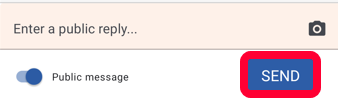
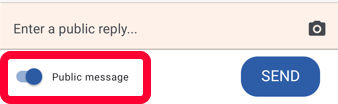
Toggle the Public message switch to the right.
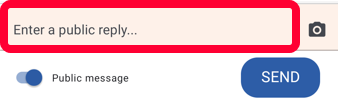
Type your comment in the Enter a public reply field.
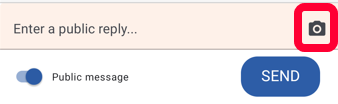
If you would like to attach an image, click the camera icon to the right. You will be prompted to take a new photo or select an existing one from your device.
When you are done, click Send.