Upload a File to a Ticket
Last updated: October 14, 2025
Overview
When creating or updating tickets, you can upload accompanying files, such as images. These can be images already on your device or a new picture taken with your device camera.
Note: You can only upload an image to existing tickets, not when creating a ticket.
In this article, we’ll go over how to upload image files to tickets.
Upload a File
First, open the ticket you want to add an image to. See the article Find and View a Ticket for help locating tickets.
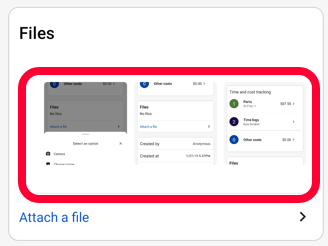
Scroll to the Files section of the ticket and click Attach a file.

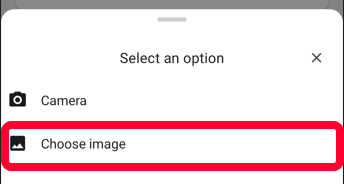
A menu will open. To upload an existing image, click Choose image. Select the desired image or images. You can upload up to 5 files at one time. Each file must be less than 10 MB.
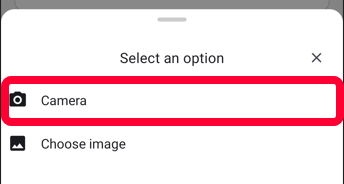
To take a new photo, click Camera. Your device’s camera will open and the photo taken will be uploaded.
Uploaded images will be shown in the Files section. Click on a file to view it in full size.