Track Time on a Ticket
Last updated: October 14, 2025
Overview
When working on a ticket, you can track your time in the nodaFi mobile app. You can start, pause, and log time all within a ticket.
Note: You can only log time on existing tickets, not when creating a ticket.
In this article, we’ll go over how to log and manage work time on a ticket.
Track Time
First, open the ticket you want to log time for. See the article Find and View a Ticket for help locating tickets.
Click Log work at the bottom of the page.
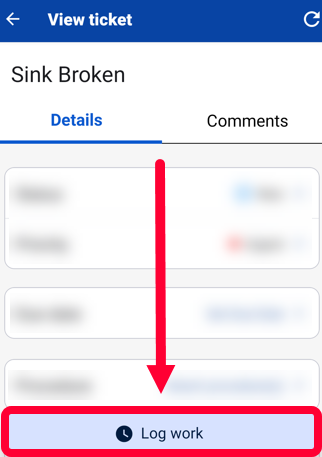
A timer will start at the bottom of the page. When done, click Pause.

The timer will stop, and you can either Resume to continue tracking time or click End to submit the time.

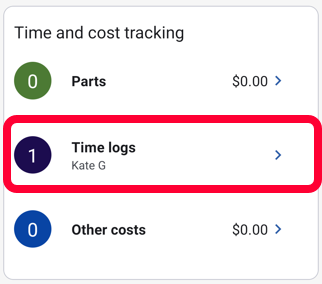
You can view submitted time logs under Time and cost tracking.
Edit Time Logged
First, open the ticket you want to view the time logs for. See the article Find and View a Ticket for help locating tickets.
Scroll to the Time and cost tracking section. Click Time logs.
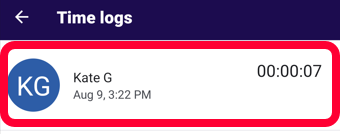
A list of all logged time will be displayed. Click on the desired log to edit it.
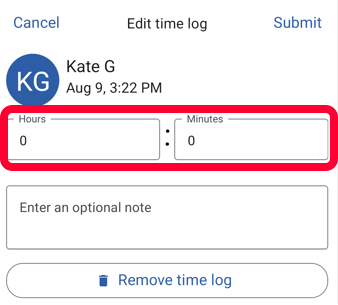
You can update the Hours and Minutes as needed.
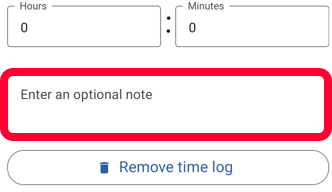
If you would like to add a note to the logged time, use the Enter an optional note section.
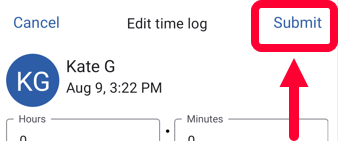
Click Submit to save your changes.
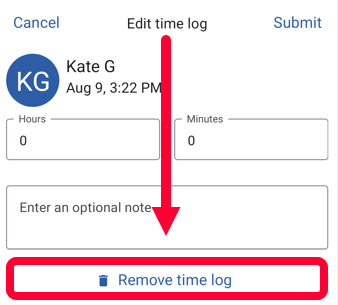
Delete a Time Log
Warning: Removing a time log cannot be undone. Use caution before deleting a time log.
First, open the ticket you want to remove time logs from. See the article Find and View a Ticket for help locating tickets.
Scroll to the Time and cost tracking section. Click Time logs.
A list of all logged time will be displayed. Click on the desired log.
Click Remove time log at the bottom.