Find and View a Ticket
Last updated: October 14, 2025
Overview
Locating and viewing tickets is essential for any user level of nodaFi. In this article, we’ll go over how to find any ticket you need.
Locate Tickets
Note: Clicking an option on your Home page will open the Ticket page prefiltered. See the article Understanding the Mobile Home Page for more information.
Click Tickets in the bottom menu to open the Tickets page. By default, all tickets you have permission to view will display.

Once the Tickets page is open, you can choose the desired view. Data displays as a table/list by default, but you can adjust the view to a calendar. We’ll go over both options below.
List View
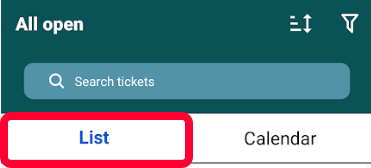
The list view shows ticket information in a simple list or grid format. You can sort the list by columns and use the search and filter options.
Click the List tab at the top of the page to use the list view.
Calendar View
The calendar view allows you to see tickets that have been scheduled. Click the Calendar tab at the top of the page to use the calendar view. You can sort the results and use the search and filter options.
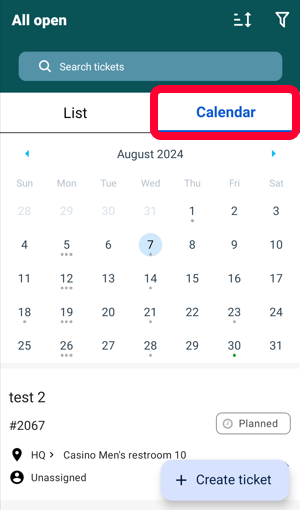
Note: Admins and some users can schedule tickets, see the article Schedule a Ticket for more information.
Search for Tickets
You can narrow ticket results with the search feature. Use the Search tickets field at the top of the page. All matching results will be displayed below.
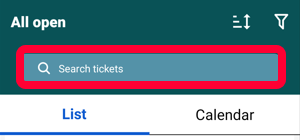
To view a ticket, simply click on the ticket.
Sort Tickets
You can organize the order of tickets. Click the lines and arrow icon in the top right.
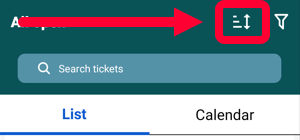
The Order By page will open. You can sort tickets based on ascending or descending order for the following:
- Status
- Created at
- Priority
- Due date
- Last updated at
Tap on one of the values to change it’s setting. A value of (desc) means tickets will be sorted in descending order. A value of (asc) means tickets will be sorted in ascending order.
In the example below, tickets will be sorted in descending order from the oldest ticket creation date to the latest creation date at the bottom.
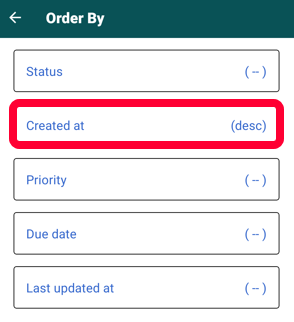
You can only sort by one value at a time, all other values will be marked with (-).
Filter Tickets
You can use custom filters to narrow ticket results. Click the funnel icon in the top right.
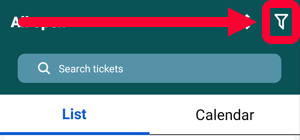
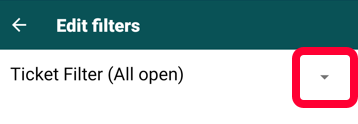
The Edit filters page will open. Any current filters will be displayed at the top. To apply a new filter, click the down arrow to the right.
In the new window, select the desired filter.
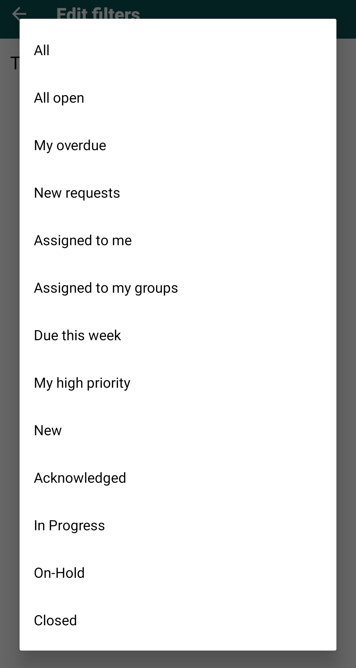
The ticket results will update based on the selected filter. To view a ticket, simply click on the ticket.